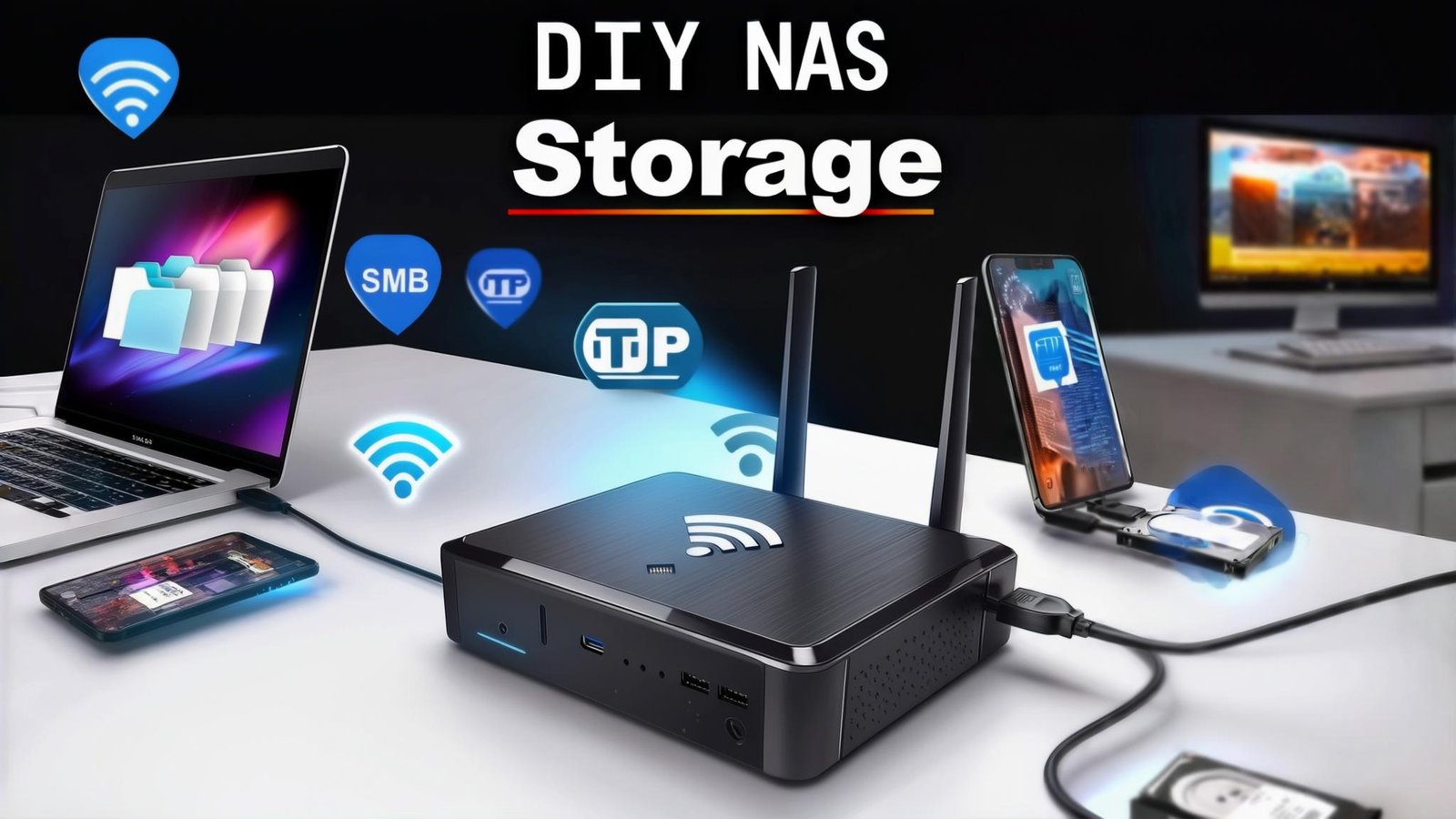
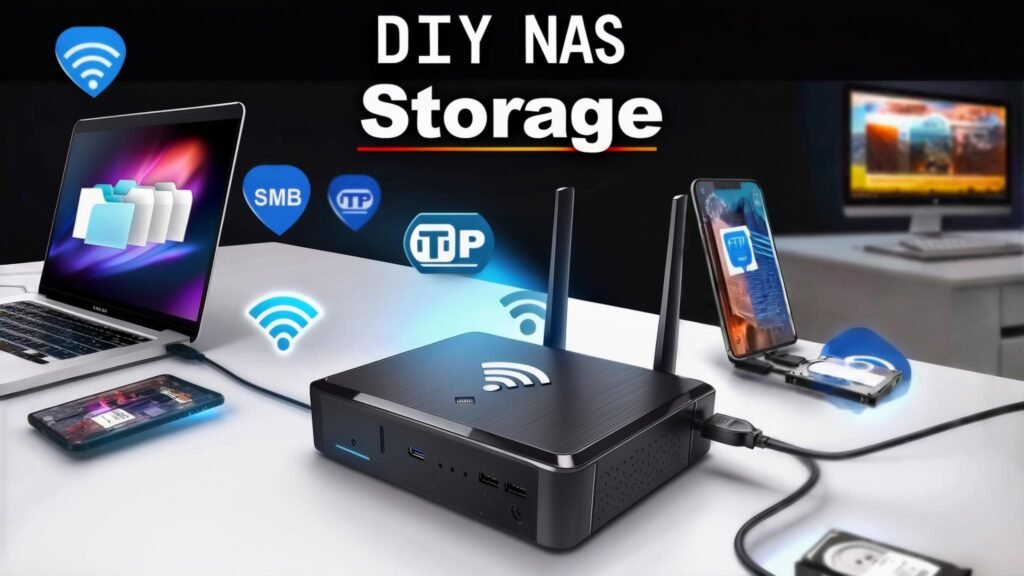
DIY NAS Storage | Make a HDD Into NAS With Your Router
What DIY NAS Storage really means and why I recommend the router method first
When I say DIY NAS Storage, I’m talking about one simple idea: make storage on your home network behave like a shared drive—so your laptop, desktop, and even your phone can access it like a mini “private cloud.” This is exactly what many router makers and NAS vendors describe as NAS: storage connected to your local network for centralized file sharing (often using protocols like SMB/CIFS, NFS, or FTP).
If you’re an 18–50 year old in the US who uses a smartphone + computer for daily productivity, this kind of setup can be a game-changer for:
- Photo/video offload (stop getting the “storage full” warning every week)
- Family/shared folders (forms, scan PDFs, school stuff, receipts)
- Laptop backups or “dropbox-style” local syncing (without paying monthly subscriptions)
- Streaming a small library of media around the house (light use)
Here’s the analogy I use: your router is the “post office” for your home network. Adding a USB drive to it turns that post office into a shared mailbox everyone in the house can open (with the right key). Many consumer routers explicitly support this “USB storage sharing” concept: TP-Link calls it local storage sharing (accessed over SMB), and NETGEAR ReadySHARE is designed to share a USB drive to your wired/wireless devices.
Also—real talk—this approach is popular because it’s cheap. A networking community thread on r/HomeNetworking basically summarizes the “why”: if your router supports it, you can plug the drive into the router’s USB port; otherwise, you need a separate computer/NAS device to serve files.
Gear checklist for DIY NAS Storage using a router USB port
You can build a basic DIY NAS drive setup with surprisingly little. The key is choosing the right nas adapter style hardware depending on what kind of drive you have.
Router requirements
At minimum, you want a router that:
- Has a USB port (USB 2.0 works, USB 3.x is strongly preferred for speed)
- Supports USB storage sharing using something like SMB/Samba and/or FTP (vendors document this differently by model)
Important “USB-C” note: If your router has a USB-C port, don’t assume it’s fast. USB-C is just a connector—ports can run at very different speeds depending on the underlying USB version/spec. (Yes, it’s confusing.)
Storage options and the “nas adapter” part
This is where most people get stuck, so I’ll make it practical:
If you already have an external USB hard drive: you can usually plug it directly into the router.
- Some USB drives require extra power (especially 3.5″ desktop drives). TP-Link and NETGEAR both warn that if the USB drive needs a power supply, you must use it.
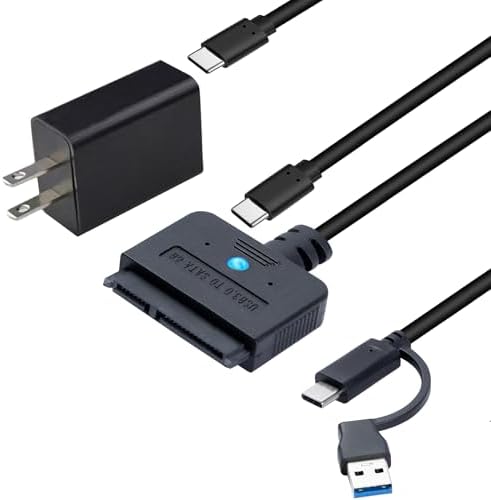
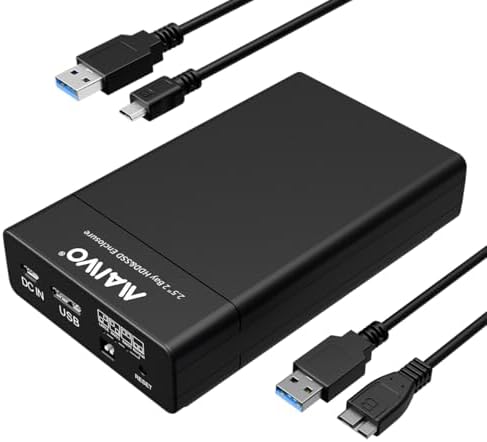
If you have a bare internal HDD/SSD (like from an old laptop): you need a USB enclosure or SATA-to-USB adapter (this is what many people mean by “usb nas adapter”).
- XDA’s router-storage guide recommends using a USB enclosure for internal drives and formatting the drive on a computer first.
USB 3.x SATA-to-USB adapter (with power for 3.5” drives)


2.5″ SATA USB enclosure (tool-free)


Optional but smart add-ons
If you want this to feel like a real DIY NAS build, these upgrades matter:
- Ethernet cable to your main PC (wired access is usually much faster and more stable than Wi‑Fi for large transfers)
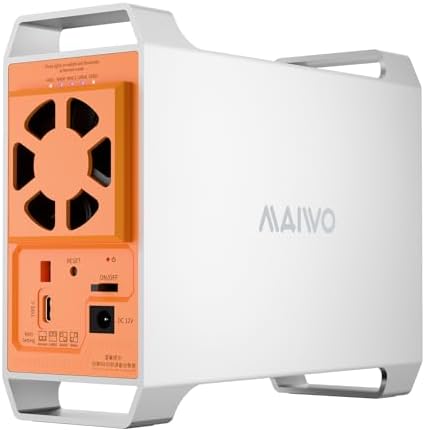
- A dual-bay RAID enclosure if you want redundancy (more on RAID below)
Dual-bay RAID 1 USB enclosure / diy nas kit upgrade

Step-by-step DIY NAS build: how I make a HDD into NAS by joining it to my router
This is the core “build your own NAS” playbook. Router menus differ, but the workflow stays the same.
Confirm your router’s access method and sharing address
Manufacturers often provide a friendly hostname or a default network name.
On TP-Link, a common access method is entering \\tplinkwifi.net in Windows (SMB) or smb://tplinkwifi.net on macOS.
On NETGEAR ReadySHARE, you can access with \\readyshare (Windows) or smb://readyshare (Mac).
This matters because it tells you:
- the router actually supports file sharing, and
- what address your PC will use to connect.
Prepare your drive the right way
A lot of router-based storage issues are really file system issues.
TP-Link’s newer USB sharing FAQ explicitly lists file systems supported for USB HDD use: FAT32, exFAT, NTFS, or HFS+.
If you’re using a bare internal drive with a SATA-to-USB adapter/enclosure, it’s very common to connect it to a computer first so you can initialize/format it. (This is the same “prep it on a PC first” pattern found in practical router-storage walkthroughs.)
Connect the drive and ensure it has enough power
Plug the USB drive into the router.
If the drive is power-hungry, use its power adapter. Both NETGEAR and TP-Link emphasize that insufficient power causes problems.
Enable USB sharing in the router admin panel
This is the “build your own network attached storage” moment: you flip on sharing.
TP-Link’s guide says to log in and go to USB settings under Advanced > USB Sharing > USB Storage Device to confirm the router recognizes the drive and to configure sharing.
ASUS documents a similar pattern: log into the router web interface, then use USB apps like AiDisk (FTP-based sharing) or the Servers Center for Samba sharing.
Create a dedicated account and password
I strongly recommend using a dedicated share account (not “guest” or totally open sharing).
ASUS’s Samba/Network Place guide shows you can set up a Samba account/password and control who can log in; it also describes a “guest login” option (which I would avoid for anything private).


password manager / security toolkit – optional but helpful
Map the share as a drive on Windows
Map the Drive So It Feels Like It’s Always There
If you want your DIY NAS storage to feel like a normal drive on your computer, you should map the network drive.
Microsoft explains that mapping a network drive lets you access the storage directly in File Explorer without typing the network address every time.
TP-Link also provides step-by-step instructions for mapping a network drive in their USB sharing FAQ.
Always Safely Remove the Drive
This step may seem boring, but it helps prevent data loss.
TP-Link recommends that before unplugging a USB drive from the router, you should use the router’s interface to safely remove the device. This helps avoid damaging your data.
Important Realities of DIY NAS Storage
When you build your own NAS using a router and a USB drive, there are some practical limitations people don’t always mention.
Speed Reality: Routers Are Not Full NAS Servers
A router’s main job is networking, not file storage.
According to Dong Knows Tech, even high-end routers usually have limited processing power for tasks like hosting files.
For the best performance when transferring large files, you should use a wired Ethernet connection, especially if your router supports Gigabit or multi-gigabit LAN.
USB 2.0 vs USB 3.x Makes a Big Difference
The type of USB port on your router greatly affects performance.
If your router only supports USB 2.0, your DIY NAS may feel very slow.
- USB 2.0: up to about 480 Mbps
- USB 3.0: up to 5 Gbps (about 10× faster)
Tom’s Hardware explains these speed differences and also notes that USB naming can be confusing.
Compatibility Issue: SMBv1
Some older routers only support SMBv1, which is an outdated file-sharing protocol.
Modern versions of Windows usually disable SMBv1 by default because it is considered insecure. Microsoft removed it as a default feature starting with Windows 10 version 1709.
Some router guides (including ASUS documentation) still suggest enabling SMBv1 if Windows cannot detect the router’s shared storage. This usually means the router is using an older file-sharing system.
A good rule is:
If you must enable SMBv1 to use your DIY NAS, keep it limited to your local network and never expose it to the internet.
Security Warning: Don’t Expose SMB to the Internet
Cybersecurity experts strongly recommend not exposing SMB file sharing to the internet.
The U.S. cybersecurity agency CISA recommends:
- Disabling SMBv1
- Blocking TCP port 445
- Blocking older NetBIOS ports
Microsoft also says most people do not need SMB access to the internet. If remote access is required, it’s safer to use a VPN.
Many routers instead offer FTP access or cloud services for remote file access. For example, TP-Link allows remote USB drive access through FTP instead of SMB.
Improving Reliability: RAID, Backups, and Upgrades
Using a router and a single drive is the easiest way to start a DIY NAS.
However, if you want to store important files like family photos or financial documents, it’s better to improve reliability.
RAID 1: A Simple Redundancy Upgrade
One common upgrade is using a two-drive enclosure with RAID 1 (mirroring).
In RAID 1, the same data is written to both drives. If one drive fails, the other still contains your data.
Seagate describes RAID 1 as a system where data is mirrored to provide protection against drive failure.
Capacity Limitation
Because RAID 1 mirrors data, you do not get the combined storage of both drives.
Instead, you only get the capacity of one drive.
For example:
- Two 4 TB drives in RAID 1 → 4 TB usable storage
If the drives have different sizes, the system usually uses the capacity of the smaller drive, as explained in RAID planning guides like UGREEN’s documentation.
Dual-bay RAID enclosure (RAID 2) for diy home nas server


RAID is not backup (use the 3-2-1 rule)
Even with RAID 1, you can still lose data to accidental deletion, ransomware, file corruption, fire/theft, or a power event.
CISA’s “Data Backup Options” guidance recommends the 3-2-1 rule: keep 3 copies of important data, on 2 different media types, with 1 copy offsite.
If your DIY NAS Storage is your “local copy,” your offsite could be:
- a second external drive stored elsewhere, or
- a cloud backup target (whatever you trust)
Upgrade path when you outgrow the router
If you start with “using router as nas,” you’ll eventually notice the limits: slower indexing, fewer user controls, weaker app ecosystem, limited snapshots/versioning.
That’s when a dedicated NAS starts to make sense.
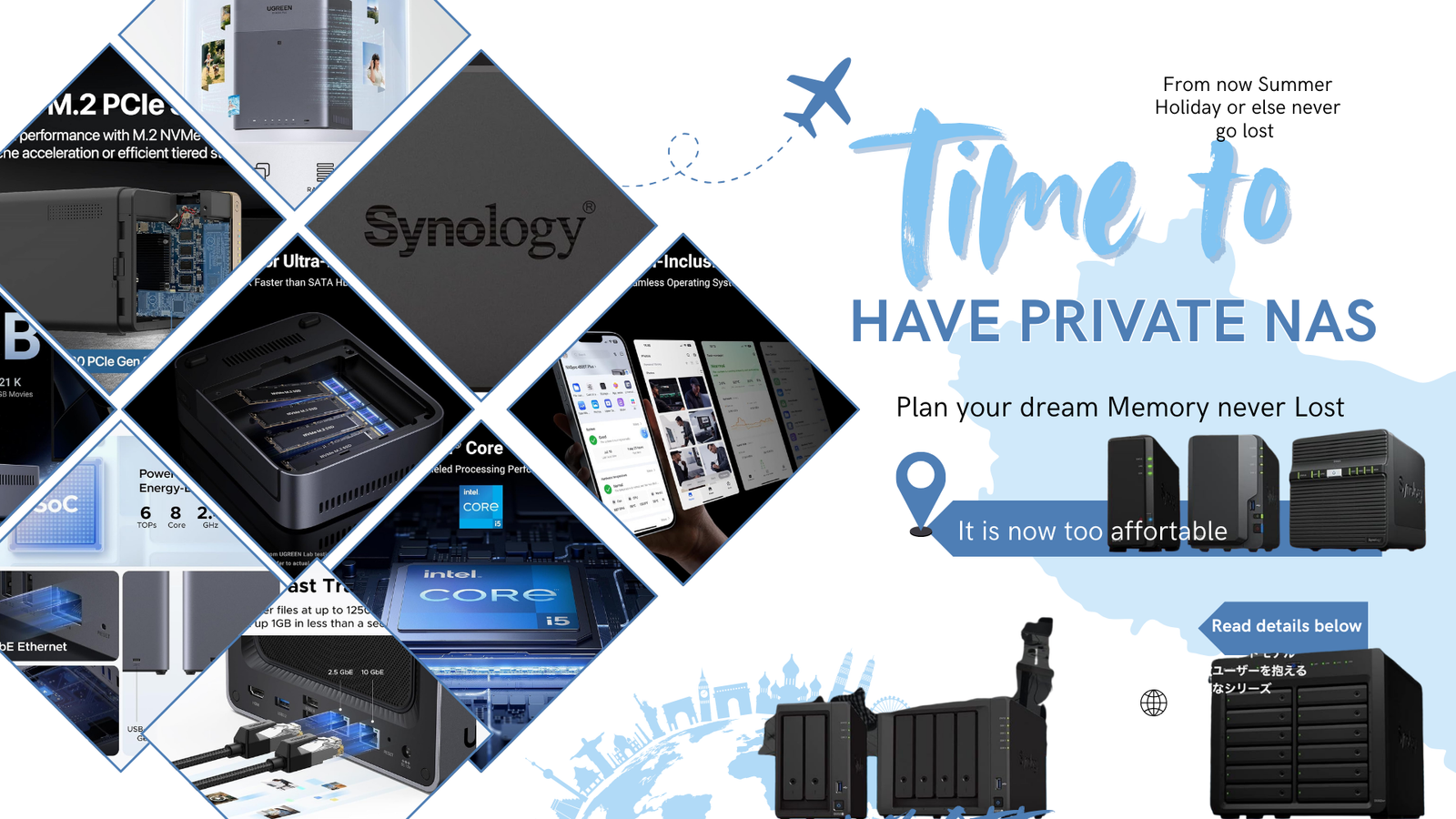
Router-based vs “real NAS” comparison: Synology, ORICO MetaBox, UGREEN NASync DH4300 Plus, and more
Below is the comparison I wish someone gave me upfront. I’m comparing DIY NAS Storage using a router USB port against popular “real NAS” options, including the products you named.
High-level comparison table
| Option | Best for | Strengths | Limitations |
| Router USB share (basic DIY NAS Storage) | Beginners, budget setups, light file sharing | Lowest cost (use what you own); quick start; built-in vendor guides for SMB/FTP access | Router CPU/storage features are limited; speed depends heavily on USB version + router performance |
| Router + RAID enclosure (DIY NAS build upgrade) | “I want redundancy but still cheap” | RAID 1 mirroring can protect against a single-drive failure | Still limited by router USB + router CPU; RAID ≠ backup |
| Synology DS423 (4-bay NAS) | People who want the most polished home NAS platform | DSM + Btrfs with instant snapshots for rollback; designed for backups and photo management | Higher cost; NAS learning curve; (also keep an eye on drive compatibility trends depending on model year) |
| UGREEN NASync DH4300 Plus (4-bay NAS) | “Beginner-friendly real NAS” for home/media storage | Positioned as budget-friendly and beginner-focused; 4-bay; marketed for photo backups/streaming | Not as feature-rich as higher-end enthusiast NAS; review notes limits like non-expandable memory and fewer premium expandability features |
| ORICO MetaBox (HS-series private cloud NAS) | Creators (photo/video workflows) who want local private cloud + modern filesystem features | PetaPixel reports MetaBox targets creative workflows; highlights NVMe slots, high capacities, and creator-focused OS features | Newer ecosystem and potentially more “platform” risk vs long-established NAS brands (verify apps + updates before buying) |
What I’d choose (simple decision guide)
If your goal is “build a cheap NAS” and you’re mostly backing up phone photos + sharing files casually, start with the router USB method. It’s the best “proof of concept” for DIY NAS Storage.
If you want a more “appliance-like” NAS with redundancy, multi-user features, and a more mature software platform, Synology’s DS line is explicitly positioned around data protection features like snapshots (Btrfs + DSM).
If you want a budget 4-bay NAS option, UGREEN’s DH4300 Plus is marketed as beginner-friendly and home-focused, and a TechRadar review highlights its value orientation and core NAS features.
If you’re a photographer/videographer and you want a private-cloud workflow with more emphasis on large-file performance plus a creator-focused OS story, the MetaBox line is explicitly targeted at creatives per PetaPixel’s coverage.
For broader shopping research, TechRadar’s “best NAS device” roundup can help you see other mainstream brands/models people buy (Synology, QNAP, TerraMaster, etc.).
FAQ about DIY NAS Storage
Can I turn an old laptop HDD into DIY NAS Storage using my router?
Yes—if your router supports USB storage sharing and you use the right adapter/enclosure. A common pattern is to put the internal drive into a USB enclosure or use a SATA-to-USB adapter, initialize/format it on a PC, then connect it to the router.
Do I need a “USB-to-Ethernet NAS adapter” to do this?
Usually, no—and many people misunderstand this.
A Super User answer explains that a USB-to-Ethernet adapter doesn’t magically make an external USB drive speak Ethernet; those adapters are meant for USB-host devices (PCs, consoles, etc.), and the drive itself “does not know how to talk” over that kind of adapter.
The practical alternative is: use a router’s USB port (if supported) or use a small computer (like a Raspberry Pi) to serve files.
Why can’t Windows see my router share unless I enable SMBv1?
Because SMBv1 is deprecated and isn’t installed by default on modern Windows. If your router only supports SMBv1, Windows may block it until you enable legacy features (which is risky).
Is it safe to access my router-based NAS from outside my house?
Be cautious. CISA recommends disabling SMBv1 and blocking SMB (TCP 445) at the network boundary, and Microsoft notes most people don’t need SMB exposed to the internet.
If you need remote access, prefer safer approaches (VPN, or vendor-supported remote features) over directly exposing SMB.
Does RAID 1 mean I don’t need backups?
No. RAID 1 provides redundancy against a single-drive failure by mirroring data, but it doesn’t replace backups. For real protection, follow the 3-2-1 backup rule from CISA.